















Side panel with four apps
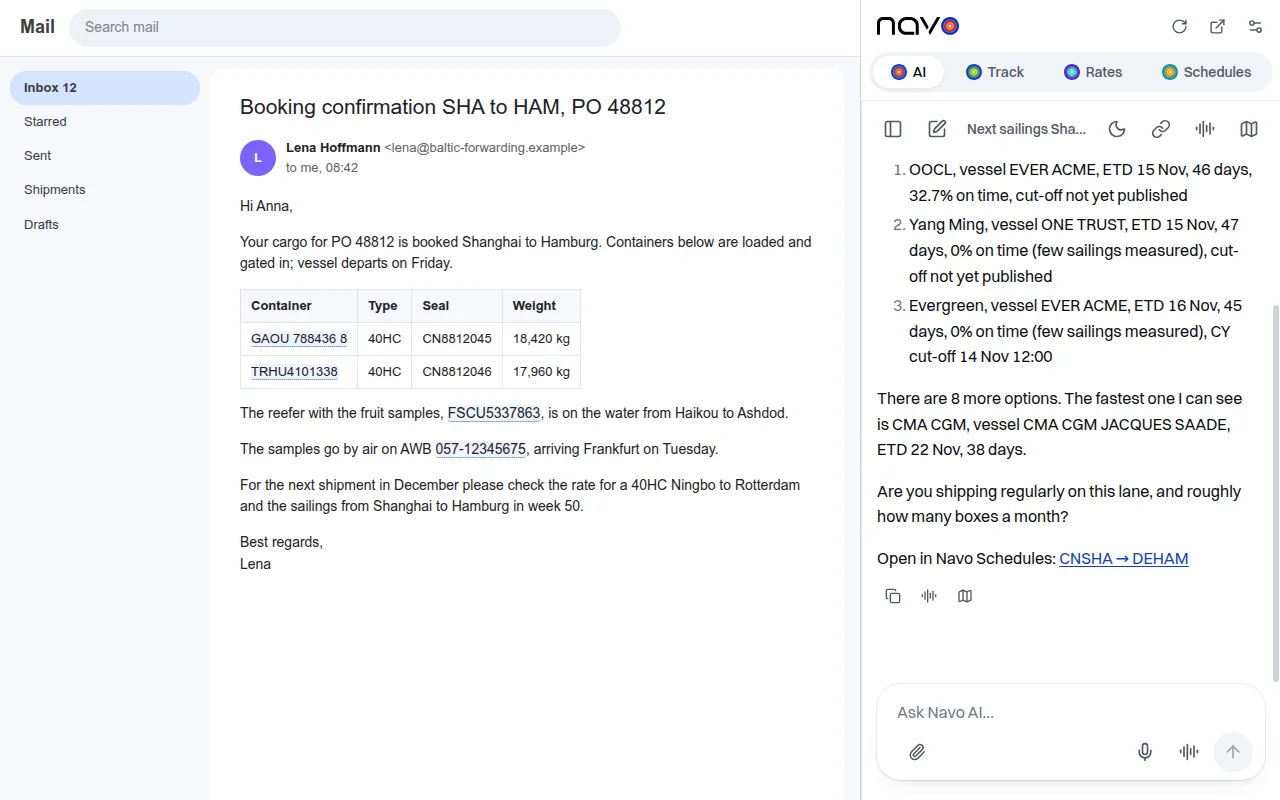
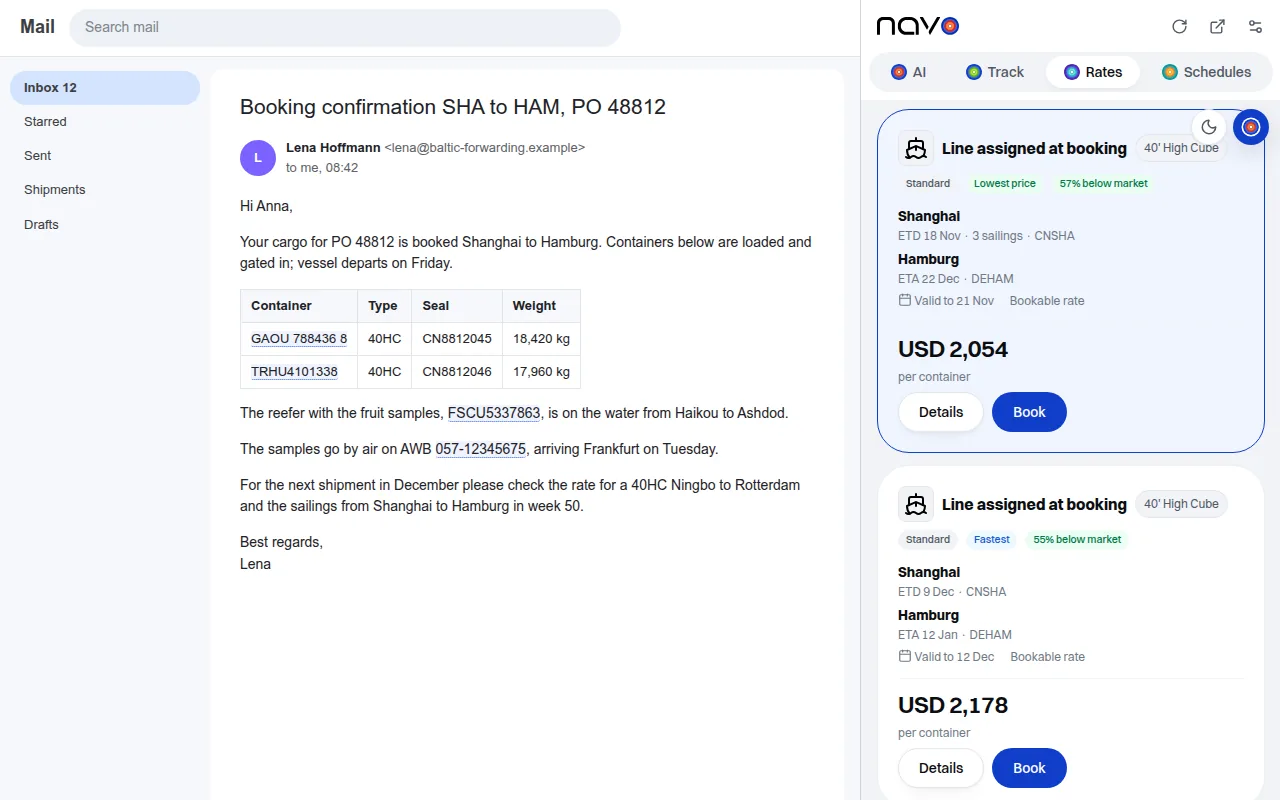
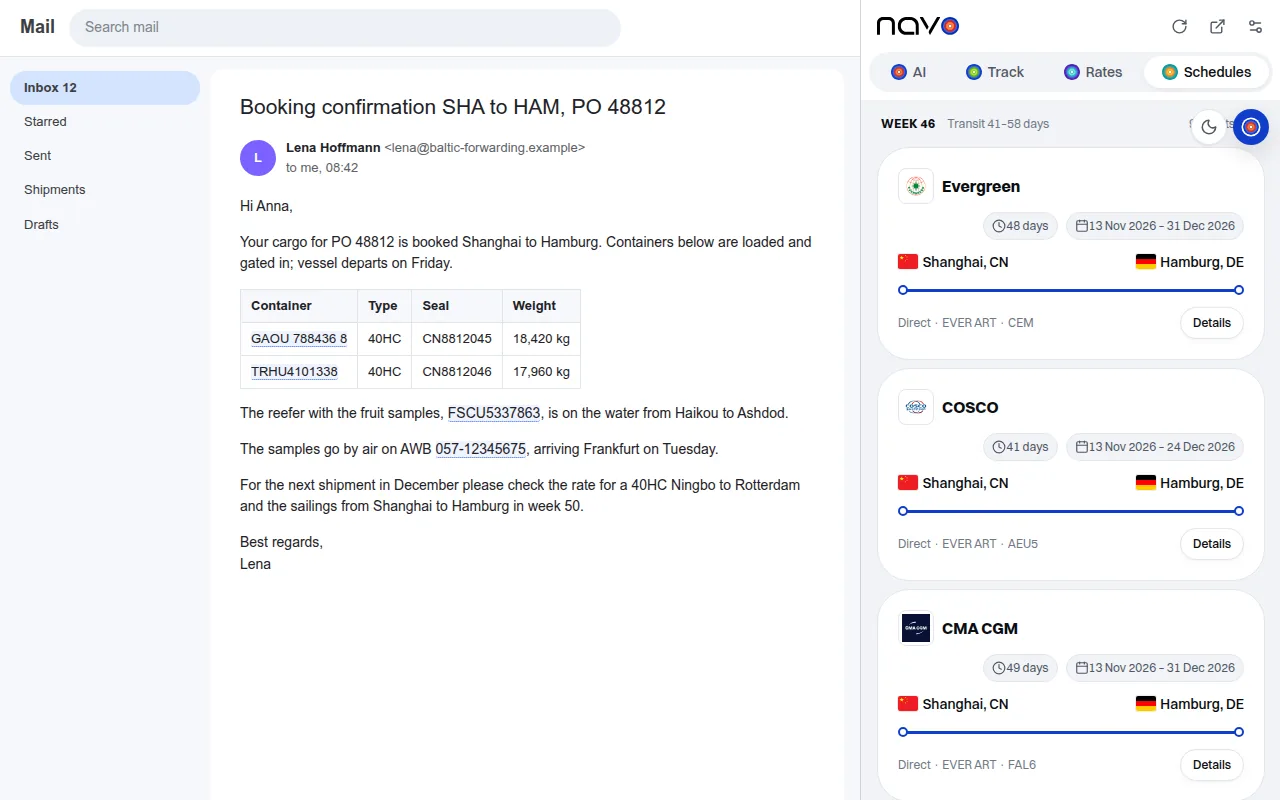
The toolbar button opens Navo24 beside the page: AI, Track, Rates and Schedules, each the full app, each keeping its place.
Navo24 for Chrome opens in the browser side panel: ask Navo24 AI, track containers and air waybills across 240+ carriers, check freight rates and find sailings without leaving the email, booking portal or spreadsheet you work in.
The toolbar button opens Navo24 beside the page: AI, Track, Rates and Schedules, each the full app, each keeping its place.
Container numbers with a valid ISO 6346 check digit and air waybills with a valid mod-7 check get a dotted underline. Click one to track it in the panel.
Your box GAOU 788436 8 loads Friday; AWB 057-12345675.
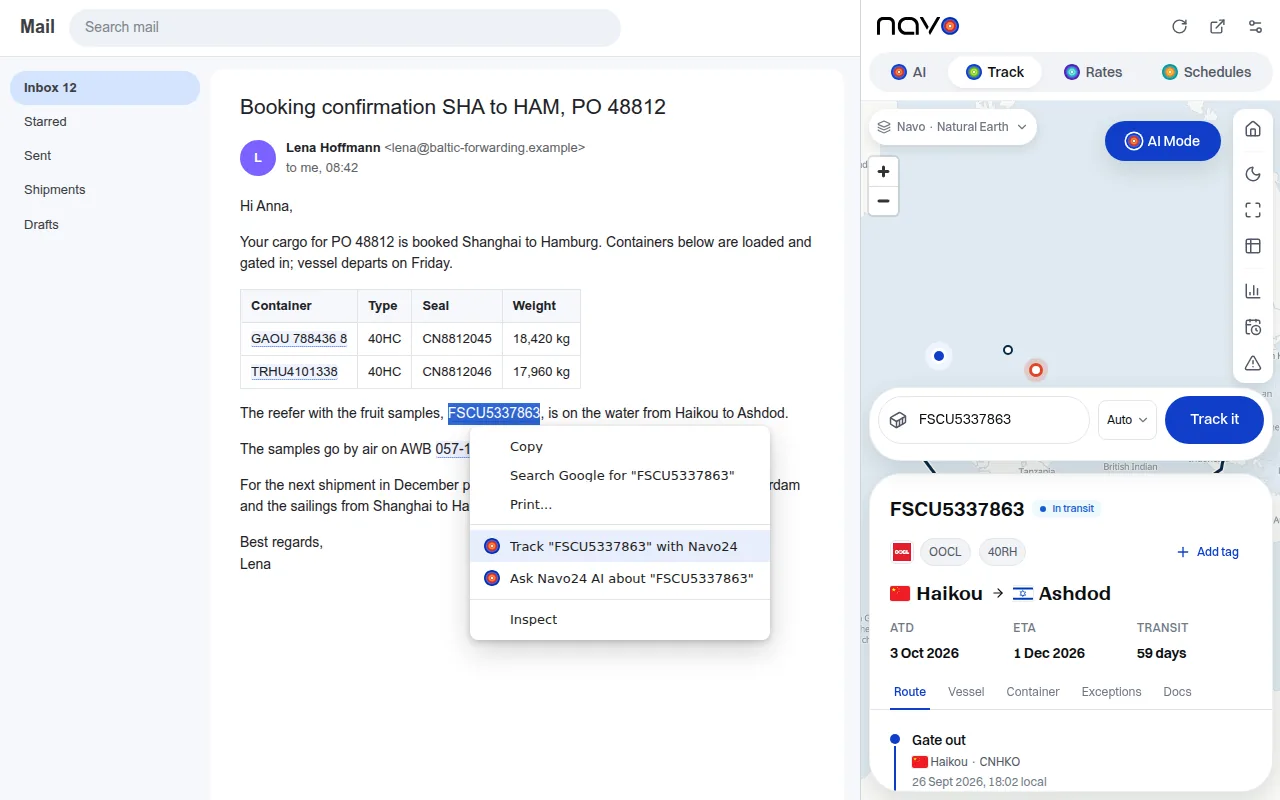
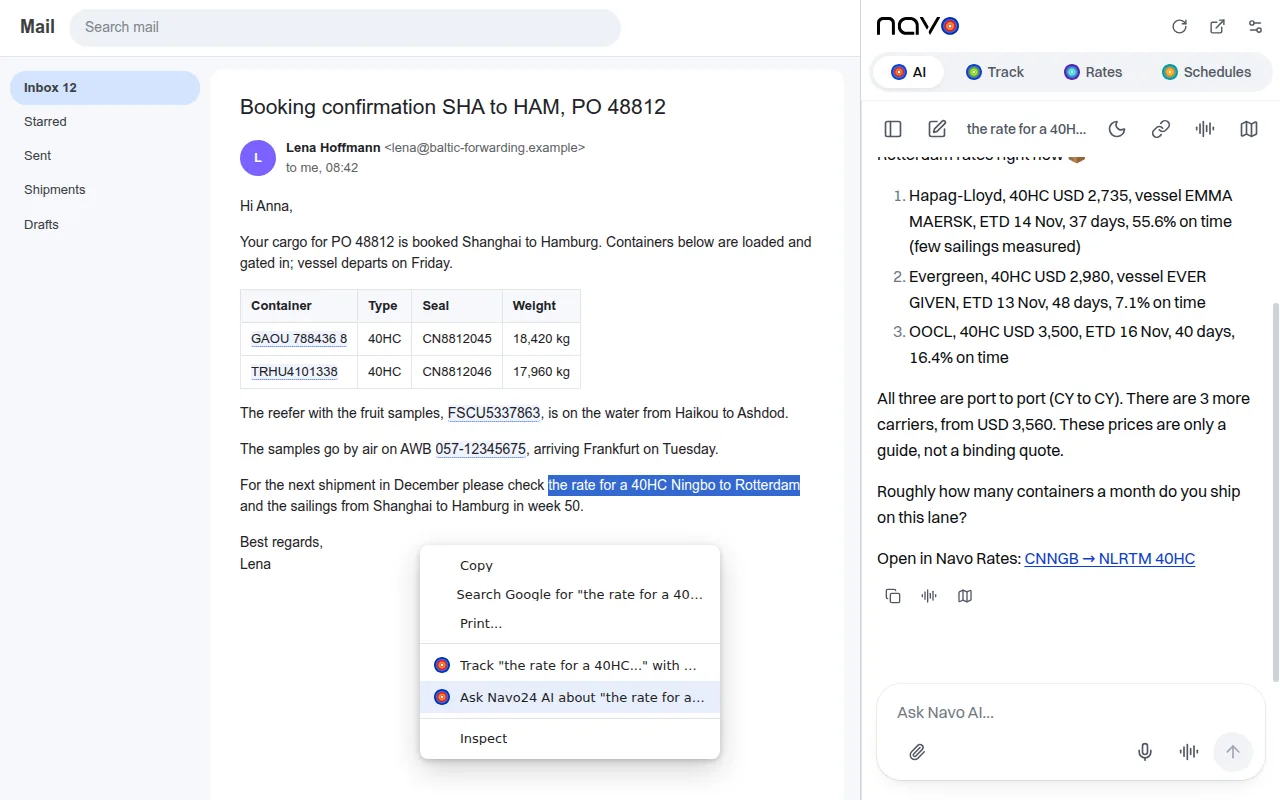
Select a container, B/L or booking number and choose Track with Navo24, or select any text and choose Ask Navo24 AI.
Real screenshots: the Navo24 side panel next to a booking email.
Until the Chrome Web Store listing goes live, install the extension from the zip. It takes a minute and works in Chrome, Edge, Brave and Opera.
chrome://extensions and switch on Developer mode (top right).Permissions: side panel, context menu and settings storage. The page text is checked locally in your browser and the extension collects no data. Privacy policy.
Four tabs: AI (the same assistant as ai.navo24.com), Track (containers, B/L, bookings and air waybills), Rates (ocean freight rates) and Schedules (sailings by route, vessel or port). Each tab keeps its place while you switch.
Container numbers that pass the ISO 6346 check digit (for example GAOU 788436 8) and IATA air waybills that pass the mod-7 check (for example 057-12345675). Numbers with a wrong check digit stay plain text, so random codes are not marked.
Yes. Select the text, right-click and choose Ask Navo24 AI. The side panel opens on the AI tab with your selection as the question.
It checks the visible text of the page in your browser to find numbers, and nothing leaves the browser until you click a number, use the menu or type in the panel. The extension itself collects no data; the Navo24 apps in the panel follow the Navo24 privacy policy.
Open the side panel, click the settings button and switch off Highlight numbers on pages. The right-click menu keeps working.